
Re-voxelize
Fine-tune your 3D models by adjusting the cube size, detail level, and angle. Optimize for your specific use case—from high-fidelity renders to Minecraft-ready assets.
📚 In This Guide
💰 Only 1 Credit!
Re-voxelization is one of the most affordable features. Experiment freely to find the perfect detail level for your model.
How Cube Size Works
The cube size determines how detailed your voxel model is. The relationship is inverse:
🔍
Smaller Cube Size
= More cubes = More detail
Higher poly count, larger file
🎮
Larger Cube Size
= Fewer cubes = Less detail
Lower poly count, smaller file
Recommended Cube Sizes
| Cube Size | Detail Level | Best For |
|---|---|---|
0.015 | Maximum | High-fidelity renders, detailed characters, showcase pieces, 3D printing |
0.035-0.036 | Minecraft-Ready | Minecraft mods, Blockbench, game-ready assets, optimized file size |
0.05+ | Low-Poly | Stylized look, performance optimization, mobile games, retro aesthetic |
⚠️ Minecraft Users: We strongly recommend creating a version at 0.035-0.036 cube size for optimal import into Blockbench or other Minecraft tools.
Typical Workflow
Generate at Maximum Detail
Start with the highest detail level (smallest cube size) to preserve all information.
Preview in 3D Viewer
Examine your model and decide if you need adjustments.
Create Optimized Versions
Re-voxelize at different cube sizes for different use cases.
Download Multiple Versions
Keep both high-detail for renders and optimized for games.
VoxAI V3 and Advanced Model Settings
Models generated with VoxAI V3 unlock extra controls in the Edit Mode sidebar. When a V3 model is selected, you'll see Advanced Model Settings below the Cube Size slider.
Lighting
- Background Brightness — Overall brightness of the environment lighting
- Background Color — Color of background/environment light (warm/cool tones)
- Directional Light Intensity — Strength of the four main lights
- Light Color — Color of directional lights on the model
Vox Model Scaling
Scale X, Y, and Z independently to adjust texture/model proportions.
Color Blending Mode
- Maximum — Keeps bright accents, best for colorful models
- Average — Smooth blends, best for realistic models
Vox Model Optimization
In the Edit Mode sidebar, below the cube size controls, you'll find Vox Model Optimization options to tailor your model for different games and workflows.
Merge Cubes
Reduces the number of cubes and faces to optimize your model and simplify editing. Recommended for Minecraft and Hytale.
Fill Up Model (Carving)
Fills the interior of your model with voxels. Recommended for voxel-based games with destruction mechanics (e.g. Teardown).
Fill Color — When carving is enabled, this sets the color of interior voxels.
⚠️ Important: Download First!
The texture on your GLB, FBX, or OBJ exports might be altered when you re-voxelize. Always download your original mesh exports before re-voxelizing to preserve them.
Angle Adjustment Tutorial
If your voxelized model doesn't look as expected, you can adjust the angle in Edit Mode to get better results. Here's a simple 4-step process:
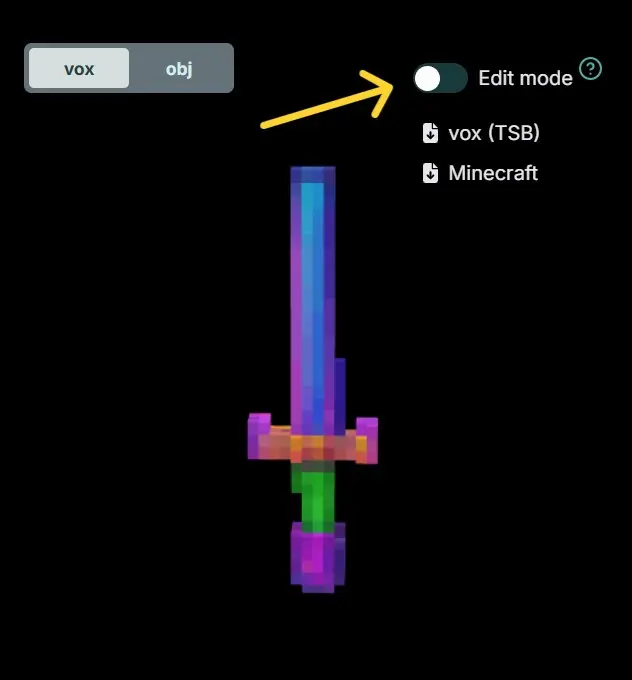
1Click on Edit Mode
Toggle Edit Mode in the 3D viewer to enable angle adjustment controls.
2You Will See Axis Lines
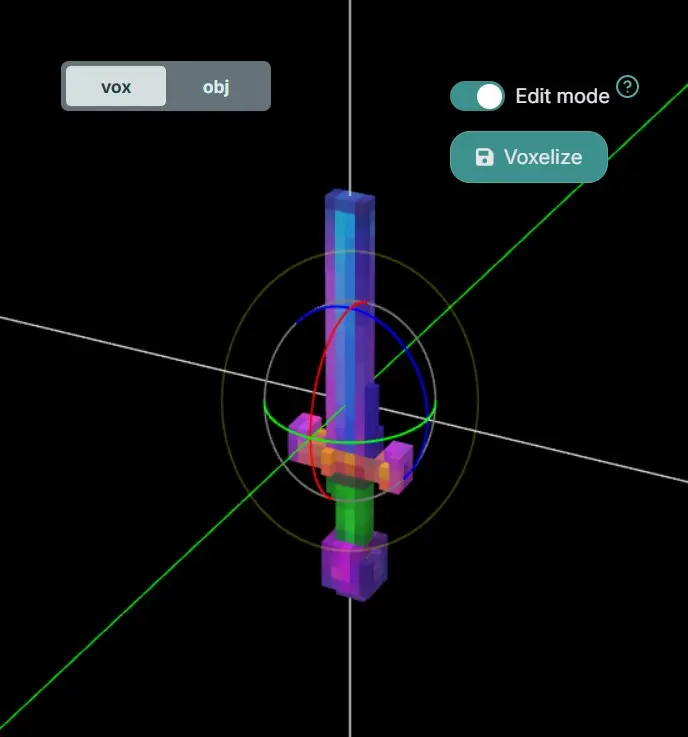
The axis lines will appear, helping you align your model. Use these as a guide for positioning.
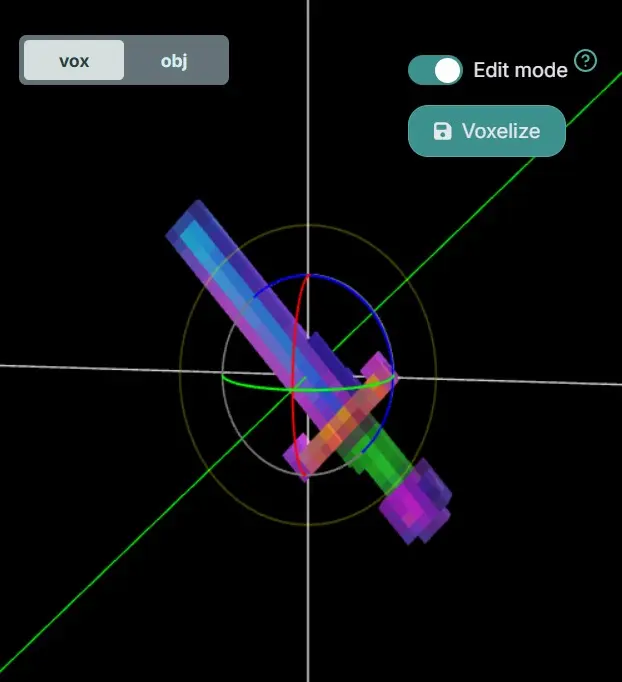
3Rotate to a Better Angle & Voxelize
Rotate the model to a better angle (e.g., rotate a sword 45° for a sharp blade look). Then click Voxelize.
4Your Model is Re-voxelized!
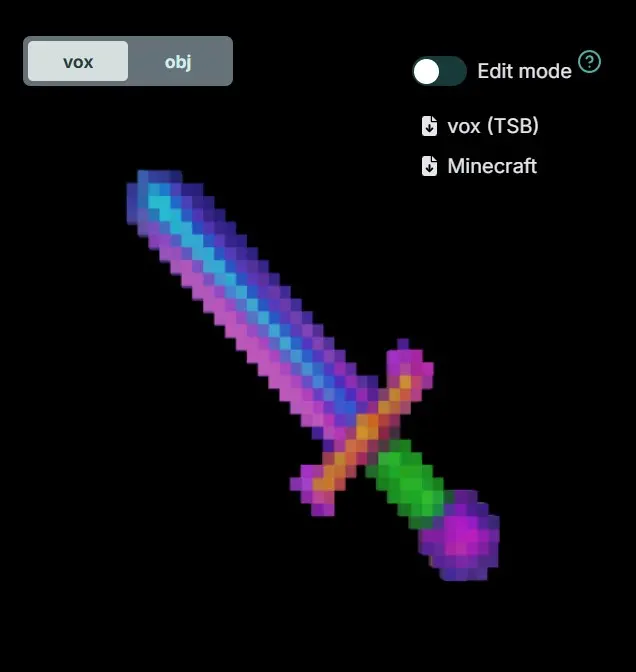
Your model will be voxelized with the new angle—looks much better! The shape is now optimized for your use case.
💡 Pro Tip: For swords and bladed weapons, rotating 45° creates that classic Minecraft-style sharp edge!
Quick Tips
🎯 Download First
Always download the original before re-voxelizing.
⚡ Only 1 Credit
Experiment freely—re-voxelization is cheap!
🗡️ 45° for Blades
Rotate bladed weapons 45° for sharp edges.
🎮 Minecraft Size
Use 0.035 cube size for Minecraft imports.